

Experiments
An experiment is a config whose variations are compared against each other. You split an environment's traffic between the variations, ConfigDirector counts how many contexts each one reached, and once you have decided, you ship the winner to everyone in one step.
ConfigDirector counts and you decide: it does not compare the variations or name a winner. The numbers you judge by come from the events your application tracks, or your analytics tool.
Experiments are available on Free and Pay as you go.
This guide follows one A/B test from start to finish: checkout-cta-copy, which compares two labels for a checkout button.
Create the experiment
On the Configs page, click Create config, enter a key and choose the Experiment role. Choose a type (String, Integer, Float or Boolean), then enter each variation's value and a name for it under Variations. A Boolean experiment needs no entry here: it gets two variations, named Enabled and Disabled.
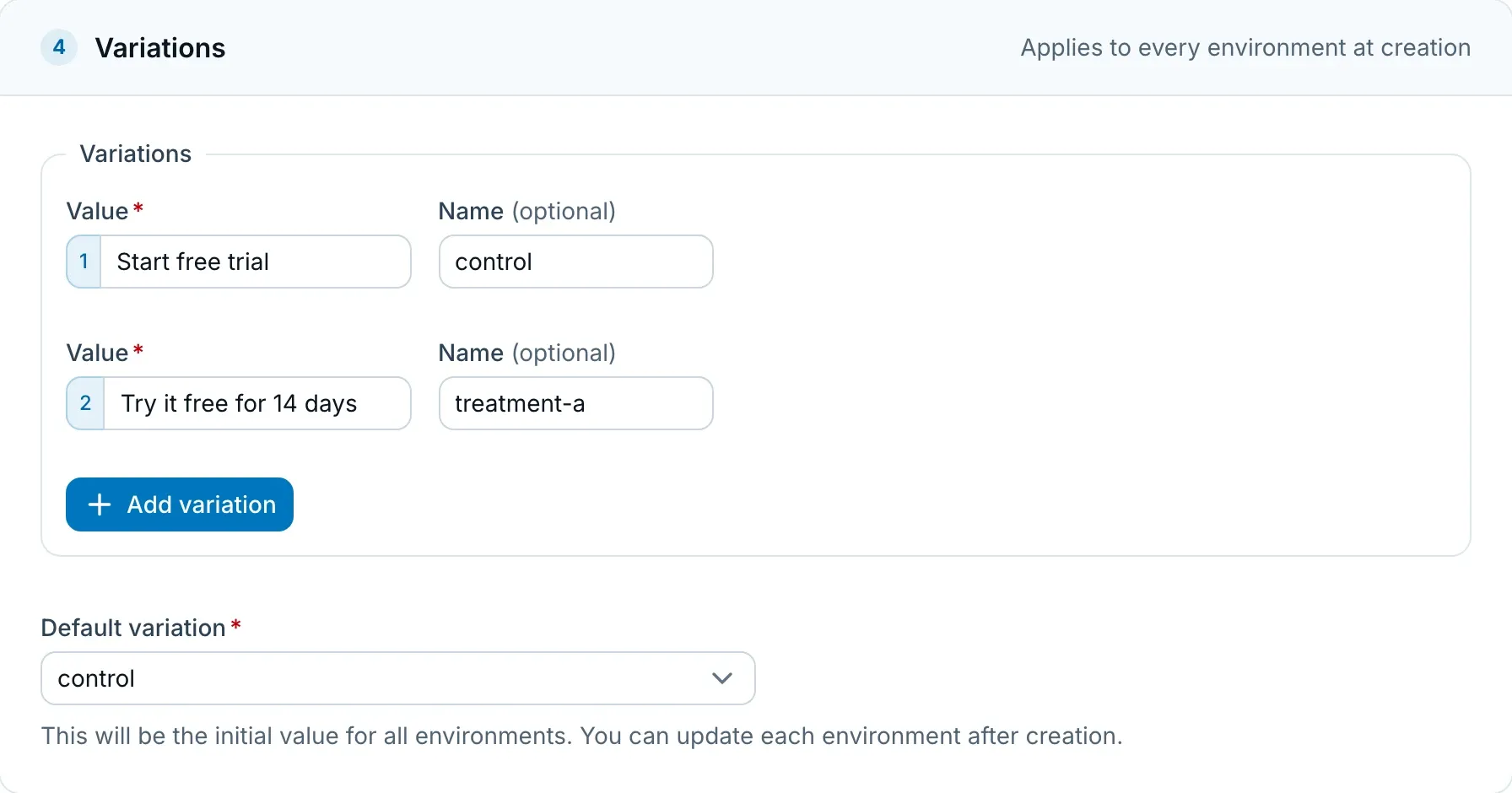
The name is how the dashboard, the audit log, the CLI and OpenFeature refer to a variation, so give each one a name. You can rename a variation later on the Settings tab, and its counts stay with it.
Default variation sets the default targeting rule value every environment starts with, which is what an environment serves until you split its traffic. It is usually your control.
Creating an experiment takes the developer role or higher.
Read it in your code
Your application reads an experiment like any other config. The second argument is the in-code default value, which your application gets when it cannot get a value from ConfigDirector:
import { createClient } from "@configdirector/client-sdk";

const client = createClient("YOUR-CLIENT-SDK-KEY");
await client.initialize({ id: "user-42" });

const buttonLabel = client.getValue("checkout-cta-copy", "Start free trial");
import { createClient } from "@configdirector/server-sdk";

const client = createClient("YOUR-SERVER-SDK-KEY");
await client.initialize();

const buttonLabel = client.getValue("checkout-cta-copy", "Start free trial", { id: "user-42" });
Available SDKs lists the page for each SDK.
Give every context a stable identifier
ConfigDirector recognizes a context by its context kind and its id. A context without an id is never counted, and what it is served depends on the SDK:
| Context | What it is served | Counted as an exposure |
|---|---|---|
Has an id | Its share of the split, the same one every time | Yes |
No id, in a browser or mobile SDK | Its share of the split, until the site's data is cleared or the app is uninstalled | No |
No id, in a server SDK | The default targeting rule value, because it skips the split | No |
Has an id and is marked anonymous, in a server SDK | Its share of the split | No |
So to count signed-out visitors, give each one an id of your own, such as one you keep in a cookie. Without it, visitors in a browser or mobile app still see the variations, but the Exposures card counts none of them. Leave anonymous off as well, because an event tracked for a context marked anonymous counts for no experiment, in any SDK.
Split traffic in an environment
An experiment opens on its Experiment tab. Pick the environment at the top. Each environment has its own targeting rules, so it runs its own split and keeps its own counts: a split in Test is a rehearsal, and the one in Production is the experiment.
- Click Start experiment… to open the Targeting rules tab with an even percentage rollout drafted under the rules you have. Nothing is saved yet.
- Adjust the shares if you want something other than an even split.
- Click Save. In a live environment, ConfigDirector asks you to confirm.
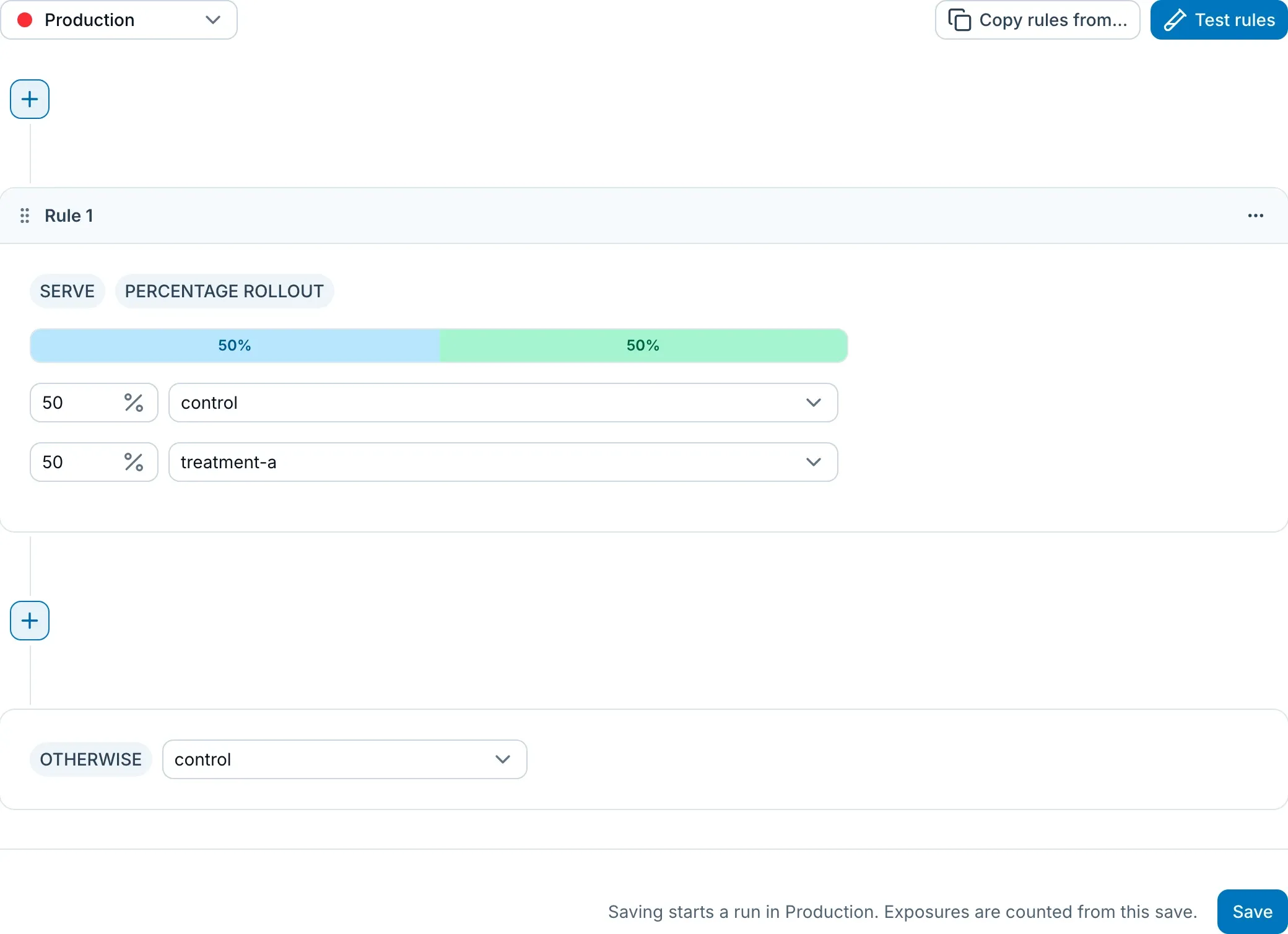
That save starts a run, the period during which the environment splits traffic between the variations. There is no other start step, and exposures are counted from that save on. A percentage rollout saved through the Admin API, the CLI, the MCP server or Terraform starts a run the same way. Starting or stopping a run and shipping a variation take the operator role or higher.
Only a percentage rollout starts a run. A rule that serves one variation to a country or a segment is targeting: those contexts were not assigned at random, so there is nothing to compare. To see how often each variation is served there, use the Activity tab.
To run the experiment on part of your traffic, put the split inside a conditional rule, such as one that matches plan is one of pro, team. An environment has one run at a time, and a run can hold several percentage rollouts, each with its own counts.
While a run is going, saving different shares, or adding or removing a percentage rollout, ends the run and starts a new one, so each run's counts belong to one set of shares. The note next to Save tells you when a save would do this, and the run that ended is listed as Replaced. Editing the other rules leaves the run alone.
A copied experiment, or one restored from the archive, keeps its split but has no run until you change the split. The Experiment tab says so.
Test a context
To check what a context gets, click Test rules on the Targeting rules tab and pick an existing context or enter a custom one. The rollout is marked with the bucket the context falls in and the share that bucket belongs to, for example Bucket 55.2 falls inside the 50% share serving Try it free for 14 days (50 to 100).
The same context gets the same bucket in your applications. The tester works on the rules in the editor, saved or not, so you can test a context before you start the run, and testing never counts as an exposure. For a context without an id, it answers the way a browser or mobile SDK does. Testing Targeting Rules explains the rest.
Read the exposures
An exposure means a context was served a variation through the split during the run. A context counts once per variation, however often it evaluates, so the counts tell you how many contexts each variation reached rather than how much traffic it got.
The Exposures card on the Experiment tab shows a bar for each variation, with the contexts it reached, their share of the total, and the share you configured, drawn as a tick on the bar. It updates hourly, so expect the first counts within about an hour of your applications evaluating the experiment.
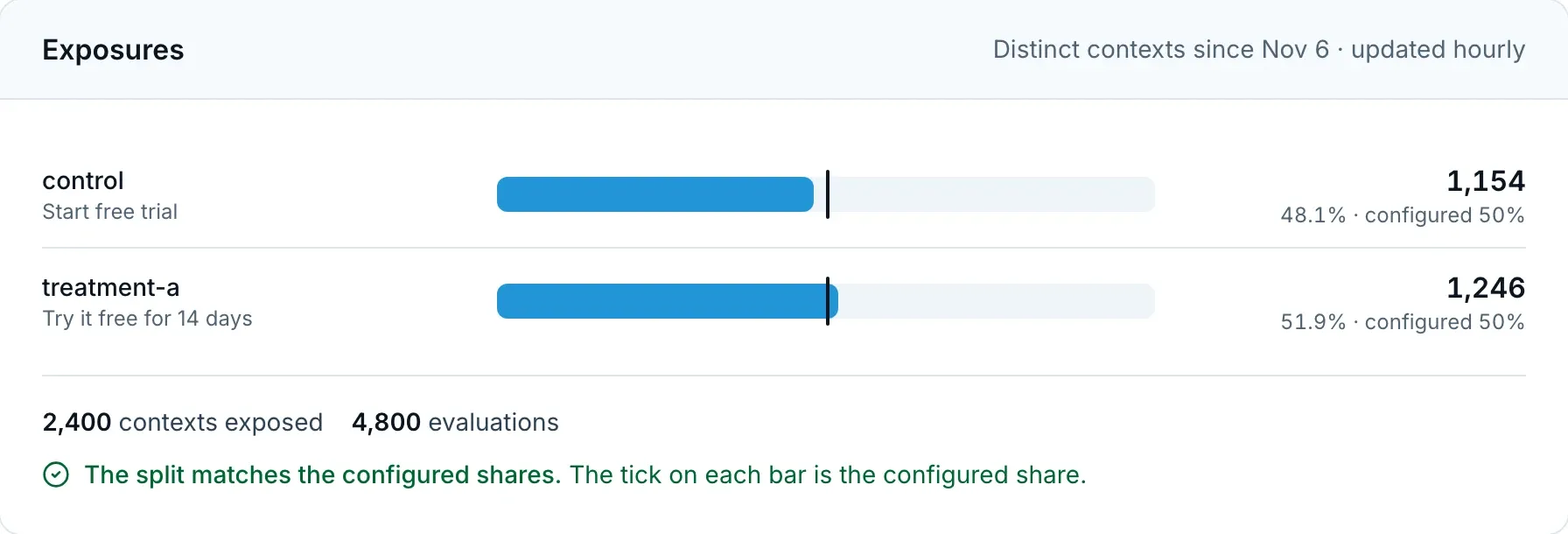
Evaluations served by a conditional rule or by the default targeting rule are not exposures. When evaluations are left out because they came from contexts without an identifier, or from SDK versions that do not report exposures yet, lines under the counts say how many.
A run with several percentage rollouts shows a block for each, headed by its conditions and checked against its own shares.
To find your experiments, choose Role: Experiment in the configs list. Each one shows its run in the selected environment under its status.
The mismatch warning
The card checks the split against the shares you configured, which tells you whether you can trust the run:
| The card says | What it means | What to do |
|---|---|---|
| The split matches the configured shares. | The counts are close enough to your shares that chance explains the difference. | Carry on. |
| The run needs more exposures before the split can be checked against the configured shares. | Too few contexts have been exposed to tell. | Wait for more traffic. |
| The split does not match the configured shares. | The difference is too large to be chance, so results from this run are not reliable. This usually means some contexts evaluate without a stable identifier, or a rule above the split catches part of the traffic. | Use Open the rule tester to look for the cause and fix it. Then stop the run and start a new one, so the counts start over. |
Compare the variations
The counts above say how many contexts each variation reached, not which one did better. For that you need the outcome you care about, per variation. You can get it in two ways, and they work together.
Track the outcome in ConfigDirector
Call track when the outcome happens, for the same context you evaluated:
client.track("checkout_completed", { value: 49 });
client.track("checkout_completed", { id: "user-42" }, { value: 49 });
The Tracked events card lists each event and, per variation, how many distinct contexts reported it after the split first served them that variation.
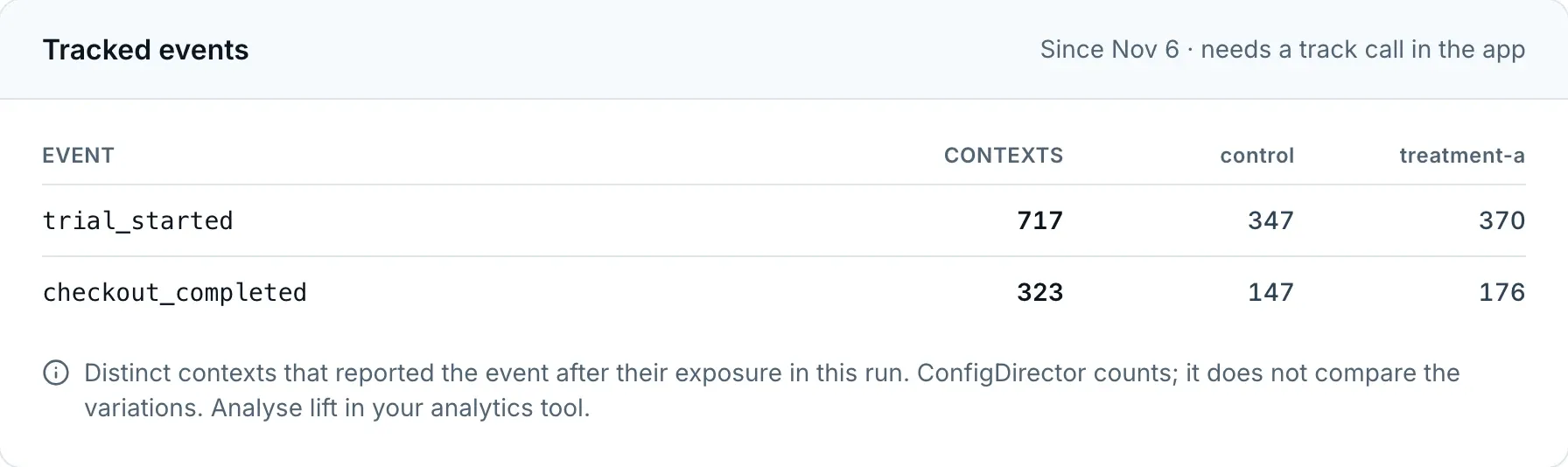
Tracked events lists the SDKs that offer track, what an event carries and its limits.
Send exposures to your analytics tool
To analyse the result where your other events already are, report each exposure to that tool from your application. The configEvaluated hook gives you the variation of each evaluation in evaluation.variation, in the browser and on the server. With OpenFeature, the variant is the variation's name, on the web and in Node.js. The outcomes you compare are the events your application already sends to the tool, and nothing passes through ConfigDirector.
Add the handler before you start the run, so the tool sees every exposure.
Ship the winner
When you have decided, click Ship… on the Experiment tab and pick the variation. The dialog shows the targeting rules today and after shipping, and warns you in a live environment. Confirming makes these changes in one save:
- The default targeting rule value becomes the variation you picked.
- Every percentage rollout is removed, including one a conditional rule serves, along with any conditional rule left with nothing to serve.
- A conditional rule that serves a single value stays, so the contexts it matches keep getting that value.
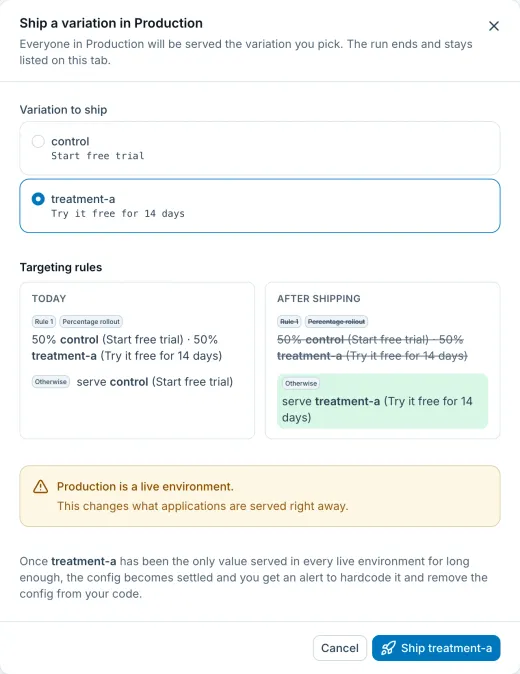
The run ends as Shipped and stays listed on the tab, with its dates, shares and exposures. Your applications get the new value as they do after any targeting rules save.
Shipping applies to one environment, so repeat it in each live environment that runs the experiment.
Stop without a winner
Stop run… ends the run without choosing a variation. Every percentage rollout is removed, the default targeting rule value stays, and the run is listed as Stopped. A conditional rule that serves a single value stays here too.
There is no pause: a later split is a new run whose counts start from zero. With the same shares, contexts get the same variation they had before.
Removing the last percentage rollout by hand on the Targeting rules tab also ends the run, but lists it as Replaced, so use Ship… and Stop run… to keep a record of how the run ended.
Remove the config once it has settled
An experiment is always temporary, so ConfigDirector tracks it for cleanup. Once it has served a single value for 14 days in every live environment with recent activity, it is Settled: its job is done, and the value can live in your code.
A Config settled alert then asks you to hardcode the value and remove the config from your code, and the config page shows the value with a copy button. Once your applications stop evaluating the config, it becomes Archive Ready and you can archive it from the Settings tab.
A config settles only when its rules can serve nothing else. A conditional rule that stayed after shipping and serves another variation holds it back, and so does a live environment that still runs the split or serves another variation. An experiment can settle on any variation, including false on a Boolean experiment, and a stopped experiment settles the same way as a shipped one.
Archiving removes the runs and their counts along with the config, so take the numbers first if you want to keep them. Config Lifecycle has the full rules.
Outside the dashboard
You can read a run, ship a variation and stop a run without opening the dashboard:
- The CLI:
configs runs,configs shipandconfigs stop. - The MCP server:
list_runs,get_run,ship_variationandstop_run. - The
configdirector-roll-outagent skill, which asks for an explicit yes in a live environment. - The Admin API.
The CLI, the MCP server and the Admin API do not ask for confirmation in a live environment, so check the environment first.
SDK versions that report exposures
These versions and later report which variation served each evaluation:
| SDK | Package | Reports exposures since |
|---|---|---|
| JavaScript | @configdirector/client-sdk | 1.11.0 |
| React | @configdirector/react-web-sdk | 1.11.0 |
| Vue | @configdirector/vue-sdk | 1.11.0 |
| React Native | @configdirector/react-native-sdk | 1.11.0 |
| Next.js | @configdirector/nextjs-sdk | 1.14.0 |
| Nuxt | @configdirector/nuxt-sdk | 1.14.0 |
| Node.js | @configdirector/server-sdk | 1.13.0 |
| Python | configdirector-server-sdk | 1.9.0 |
| OpenFeature Web | @configdirector/openfeature-web-provider | 1.11.0 |
| OpenFeature Node.js | @configdirector/openfeature-server-provider | 1.13.0 |
| OpenFeature Python | configdirector-openfeature-server-provider | 1.8.0 |
The other SDKs do not report exposures yet, and neither do older versions of these. Contexts using them are still split and served a variation, but the Exposures card does not count them, and it says how many evaluations it left out.